%20scale(0.1008)'%3e%3cpath%20d='M165-700L80-700L80%200L165%200L165-340L455%200L560%200L242-372L545-700L440-700L165-399L165-700ZM1085-700L685-700L685%200L1085%200L1085-80L770-80L770-340L1065-340L1065-420L770-420L770-620L1085-620L1085-700Z'%20fill='%23FFFFFF'%3e%3c/path%3e%3c/g%3e%3c/svg%3e)
%20scale(0.1008)'%3e%3cpath%20d='M165-700L80-700L80%200L165%200L165-340L455%200L560%200L242-372L545-700L440-700L165-399L165-700ZM1085-700L685-700L685%200L1085%200L1085-80L770-80L770-340L1065-340L1065-420L770-420L770-620L1085-620L1085-700Z'%20fill='%2316294B'%3e%3c/path%3e%3c/g%3e%3c/svg%3e)
'%3e%3cpath%20d='M165-700L80-700L80%200L165%200L165-340L455%200L560%200L242-372L545-700L440-700L165-399L165-700ZM890-700L805-700L805%200L890%200L890-700ZM1825-700L1740-700L1740-179L1210-735L1210%200L1295%200L1295-521L1825%2035L1825-700ZM2545-700L2145-700L2145%200L2545%200L2545-80L2230-80L2230-340L2525-340L2525-420L2230-420L2230-620L2545-620L2545-700ZM2785-700L2785-620L2965-620L2965%200L3050%200L3050-620L3230-620L3230-700L2785-700ZM3565-700L3480-700L3480%200L3565%200L3565-700ZM3935-350L3935-350Q3935-432%203971.500-493.500Q4008-555%204067-590Q4126-625%204195-625L4195-625Q4245-625%204286.500-612Q4328-599%204362-575.500Q4396-552%204420-521L4420-521L4420-633Q4376-672%204324-691Q4272-710%204195-710L4195-710Q4122-710%204058.500-683.500Q3995-657%203947-608.500Q3899-560%203872-494Q3845-428%203845-350L3845-350Q3845-272%203872-206Q3899-140%203947-91.500Q3995-43%204058.500-16.500Q4122%2010%204195%2010L4195%2010Q4272%2010%204324-9Q4376-28%204420-67L4420-67L4420-179Q4396-148%204362-124.500Q4328-101%204286.500-88Q4245-75%204195-75L4195-75Q4126-75%204067-110Q4008-145%203971.500-207Q3935-269%203935-350ZM5590-700L5190-700L5190%200L5590%200L5590-80L5275-80L5275-340L5570-340L5570-420L5275-420L5275-620L5590-620L5590-700ZM6110-700L5900-700L5900%200L6110%200Q6212%200%206291-44Q6370-88%206415-166.500Q6460-245%206460-350Q6460-455%206415-533.500Q6370-612%206291-656Q6212-700%206110-700L6110-700ZM6110-85L5985-85L5985-615L6110-615Q6169-615%206218-596.500Q6267-578%206302-543.500Q6337-509%206356-460Q6375-411%206375-350Q6375-289%206356-240Q6337-191%206302-156.500Q6267-122%206218-103.500Q6169-85%206110-85L6110-85ZM7065-355L7065-275L7298-275Q7289-234%207269.500-198Q7250-162%207220-134Q7190-106%207148.500-90.500Q7107-75%207055-75L7055-75Q6981-75%206921-110Q6861-145%206825.500-207Q6790-269%206790-350L6790-350Q6790-432%206825.500-493.500Q6861-555%206921-590Q6981-625%207055-625L7055-625Q7135-625%207194-593.500Q7253-562%207286-506L7286-506L7346-561Q7316-610%207272.500-643Q7229-676%207174.500-693Q7120-710%207055-710L7055-710Q6979-710%206914-683.500Q6849-657%206801-608.500Q6753-560%206726.500-494Q6700-428%206700-350L6700-350Q6700-272%206726.500-206Q6753-140%206801-91.500Q6849-43%206914-16.500Q6979%2010%207055%2010L7055%2010Q7135%2010%207197.500-19.500Q7260-49%207303-100Q7346-151%207368-216.500Q7390-282%207390-355L7390-355L7065-355ZM8075-700L7675-700L7675%200L8075%200L8075-80L7760-80L7760-340L8055-340L8055-420L7760-420L7760-620L8075-620L8075-700Z'%20fill='%2316294B'%3e%3c/path%3e%3c/g%3e%3c/svg%3e)
'%3e%3cpath%20d='M165-700L80-700L80%200L165%200L165-340L455%200L560%200L242-372L545-700L440-700L165-399L165-700ZM890-700L805-700L805%200L890%200L890-700ZM1825-700L1740-700L1740-179L1210-735L1210%200L1295%200L1295-521L1825%2035L1825-700ZM2545-700L2145-700L2145%200L2545%200L2545-80L2230-80L2230-340L2525-340L2525-420L2230-420L2230-620L2545-620L2545-700ZM2785-700L2785-620L2965-620L2965%200L3050%200L3050-620L3230-620L3230-700L2785-700ZM3565-700L3480-700L3480%200L3565%200L3565-700ZM3935-350L3935-350Q3935-432%203971.500-493.500Q4008-555%204067-590Q4126-625%204195-625L4195-625Q4245-625%204286.500-612Q4328-599%204362-575.500Q4396-552%204420-521L4420-521L4420-633Q4376-672%204324-691Q4272-710%204195-710L4195-710Q4122-710%204058.500-683.500Q3995-657%203947-608.500Q3899-560%203872-494Q3845-428%203845-350L3845-350Q3845-272%203872-206Q3899-140%203947-91.500Q3995-43%204058.500-16.500Q4122%2010%204195%2010L4195%2010Q4272%2010%204324-9Q4376-28%204420-67L4420-67L4420-179Q4396-148%204362-124.500Q4328-101%204286.500-88Q4245-75%204195-75L4195-75Q4126-75%204067-110Q4008-145%203971.500-207Q3935-269%203935-350ZM5590-700L5190-700L5190%200L5590%200L5590-80L5275-80L5275-340L5570-340L5570-420L5275-420L5275-620L5590-620L5590-700ZM6110-700L5900-700L5900%200L6110%200Q6212%200%206291-44Q6370-88%206415-166.500Q6460-245%206460-350Q6460-455%206415-533.500Q6370-612%206291-656Q6212-700%206110-700L6110-700ZM6110-85L5985-85L5985-615L6110-615Q6169-615%206218-596.500Q6267-578%206302-543.500Q6337-509%206356-460Q6375-411%206375-350Q6375-289%206356-240Q6337-191%206302-156.500Q6267-122%206218-103.500Q6169-85%206110-85L6110-85ZM7065-355L7065-275L7298-275Q7289-234%207269.500-198Q7250-162%207220-134Q7190-106%207148.500-90.500Q7107-75%207055-75L7055-75Q6981-75%206921-110Q6861-145%206825.500-207Q6790-269%206790-350L6790-350Q6790-432%206825.500-493.500Q6861-555%206921-590Q6981-625%207055-625L7055-625Q7135-625%207194-593.500Q7253-562%207286-506L7286-506L7346-561Q7316-610%207272.500-643Q7229-676%207174.500-693Q7120-710%207055-710L7055-710Q6979-710%206914-683.500Q6849-657%206801-608.500Q6753-560%206726.500-494Q6700-428%206700-350L6700-350Q6700-272%206726.500-206Q6753-140%206801-91.500Q6849-43%206914-16.500Q6979%2010%207055%2010L7055%2010Q7135%2010%207197.500-19.500Q7260-49%207303-100Q7346-151%207368-216.500Q7390-282%207390-355L7390-355L7065-355ZM8075-700L7675-700L7675%200L8075%200L8075-80L7760-80L7760-340L8055-340L8055-420L7760-420L7760-620L8075-620L8075-700Z'%20fill='%23FFFFFF'%3e%3c/path%3e%3c/g%3e%3c/svg%3e)
KTools: Console Consumer Filter
First written March 2024, last updated September 2026.
A second command-line tool has been added to KTools. The command kafka- allows for filtering JSON, JSON Schema, and Avro serialized messages by JSON Path expressions. In addition to filtering a message, JSON Paths can also be used for highlighting elements within the JSON.
Introduction
This tool is designed around questions like:
- Did an event with a given JSON Element make it to Kafka?
- How do we quickly check events on the topic over the past 2 hours without having to write an ISO 8601 string?
- How do we stream data as it is happening, highlighting what we’re most interested in?
Why
As developers, we embrace command-line tools. The ability to see and display content on a topic is important for troubleshooting, validation, and onboarding new developers. In the past, we would chain kafka- with Unix tools like grep, but that had its struggles.
We also found date-time navigation with the standard CLI tools frustrating. Not being able to stop consumption at a given time also made it quite challenging to verify a simple question, “Was a message created two to three hours ago?”
Overview
The best way to give an overview of this tool is through examples. Here are a few to see if this CLI tool can help you.
Find messages with a price under 1.00
Specifically
- Filter any message that doesn’t have a price element that is less than 1.00.
- Highlight the items in blue, the SKU in yellow, prices less than 1.00 in red, and any price greater than 30.00 in green.
- Search the entire topic, exiting when it reaches offsets associated with “right now”.
- Include the topic key and metadata as part of the output.
Syntax
kafka-console-consumer-filter --bootstrap-server localhost:9092 --topic orders-pickup \ --filter "$..[?(@.price < 1.0)]" \ --highlight "BLUE=$..items" \ --highlight "RED=$..[?(@.price < 1.0)].price" \ --highlight "GREEN=$..[?(@.price > 30.0)].price" \ --highlight "YELLOW=$..sku" \ --include-key \ --include-metadata \ --start earliest \ --end nowOutput
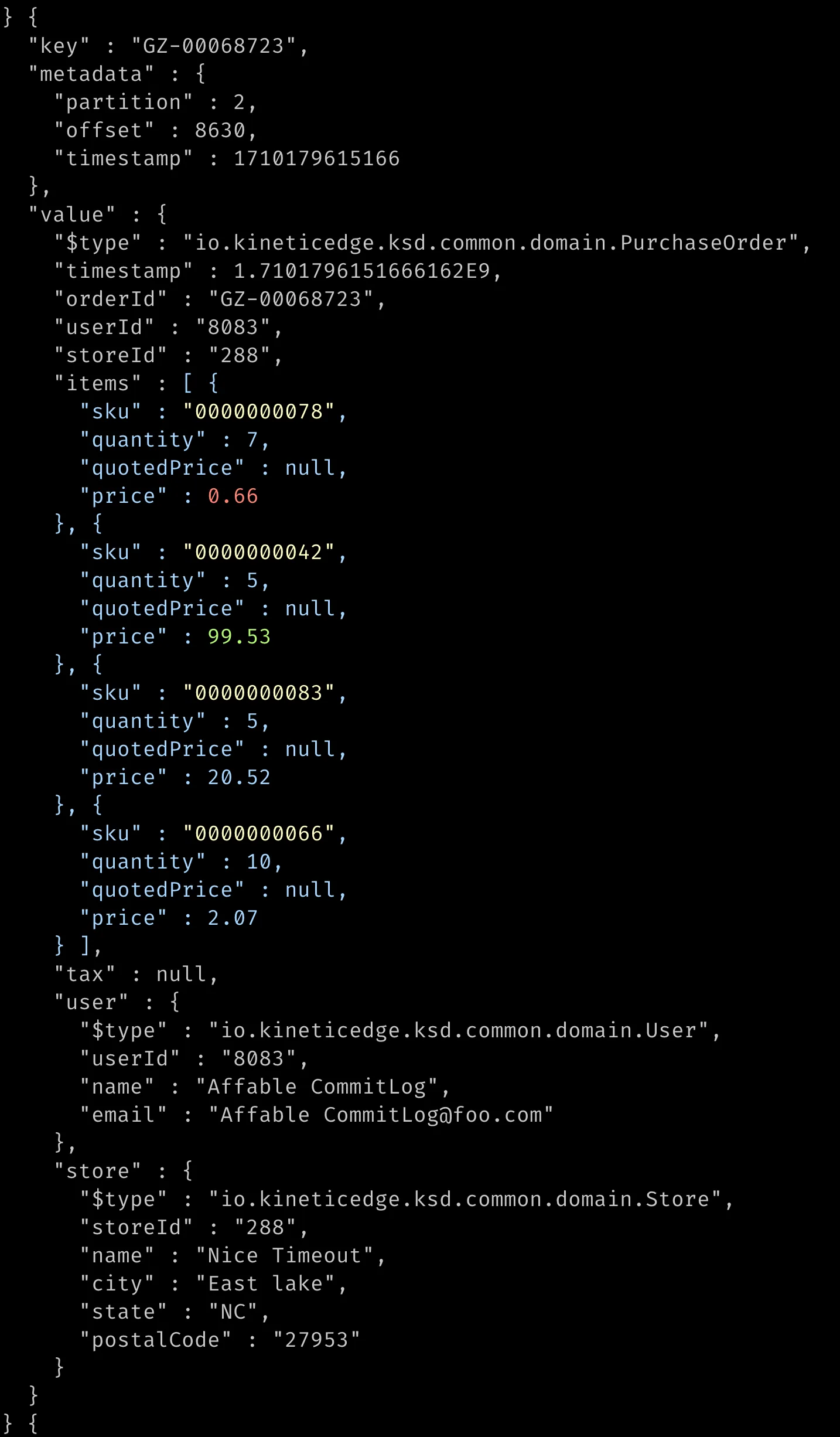
Find messages with 4 or more line items
Specifically
- Filter only orders that have at least 4 elements in the “items” array.
- Highlight the item array as blue, prices with the default color (red), and all name attributes in purple.
- Start from 1 day ago and stop when messages exist after the time this command starts executing.
Syntax
kafka-console-consumer-filter --bootstrap-server localhost:9092 --topic orders-pickup \ --filter "$..[?( @.items.length() >= 4 )]" \ --highlight "BLUE=$..items" \ --highlight "$..price" \ --highlight "PURPLE=$..name" \ --rewind 1d \ --end nowOutput
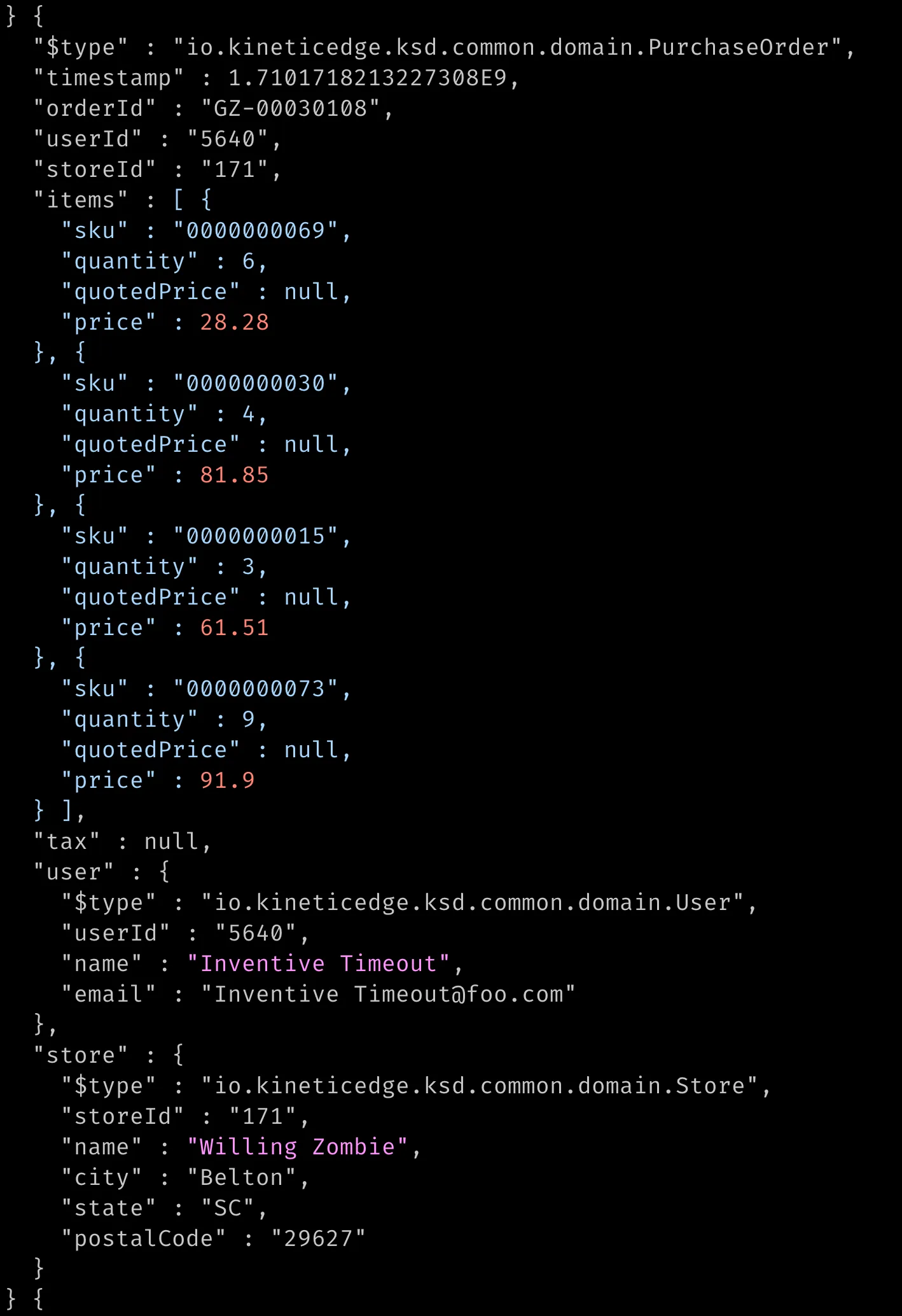
Display Avro as JSON with orderIds and prices highlighted
Specifically
- Select
avroas the format, providing the URL to the schema registry. - Start from March 11th, 2024 at 17:00 UTC, and stop at the time when the command started.
- Highlight orderIds in blue and all price elements in red.
Syntax
kafka-console-consumer-filter --bootstrap-server localhost:9092 --topic purchase-orders \ --format avro \ --schema-registry http://localhost:8081 \ --highlight "BLUE=$..orderId" \ --highlight "$..price" \ --start "2024-03-11T17Z" \ --end nowOutput
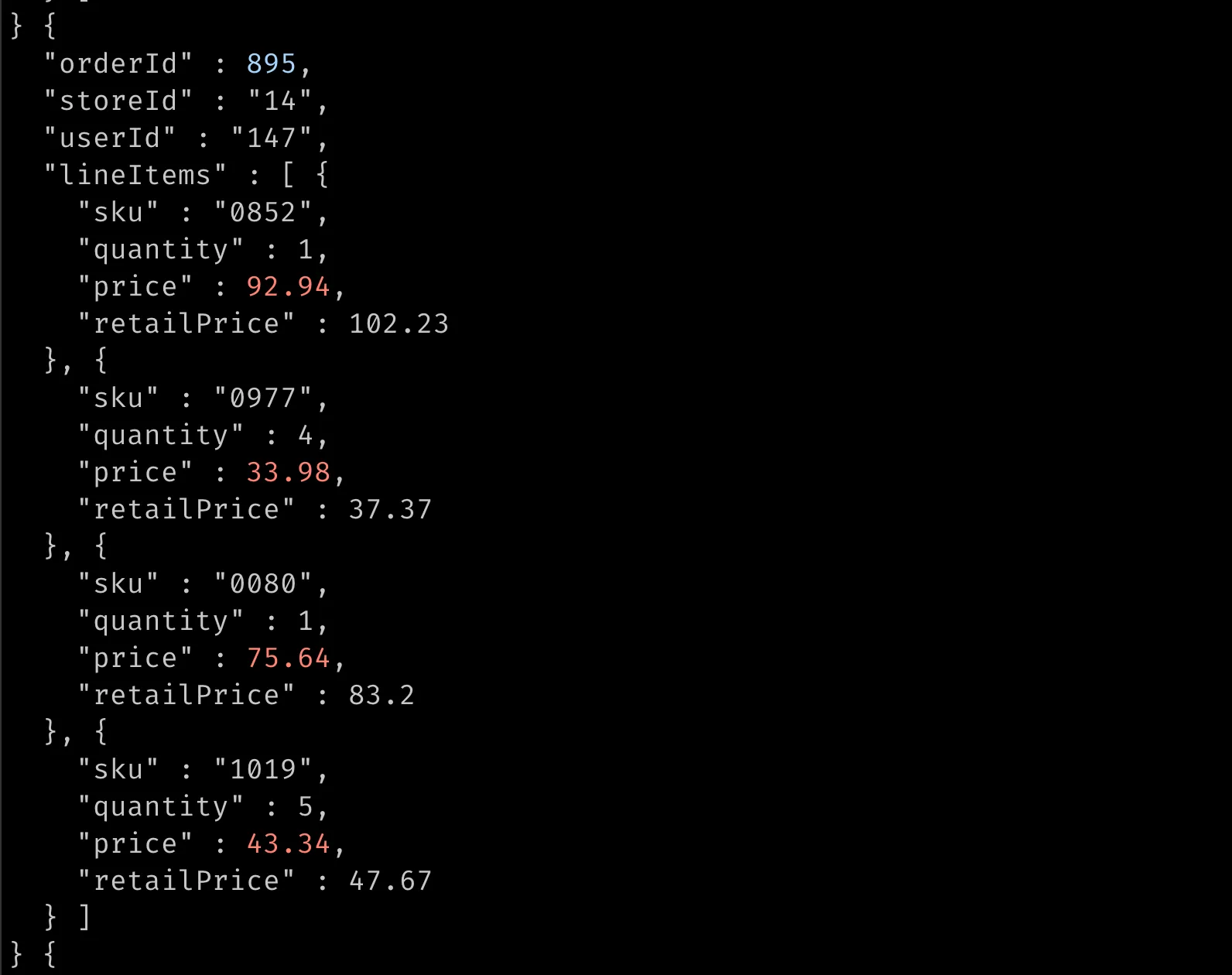
The flags you will use most
-is a JSON Path expression that must match the message value for the message to be displayed. For Avro, it runs against the JSON rendering of the record.- filter -(repeatable) is- highlight COLOR=Path; omit the color to use the default (red). Colors: black, red, green, yellow, blue, purple, cyan, and white.-takes a flexible date-time (- start yyyy-) orMM- dd(T, )HH: mm: ss. SSSZ now,earliest, orlatest;-moves the start time back by a duration. Timezone defaults to the system timezone, so use- rewind 2h Zif you mean UTC.-and- end -set the end time the same way;- forward -stops when the consumer reaches offsets from when the command started.- end now -is- format json,json-, orschema avro; the Schema Registry formats take-.- schema- registry -and- include- key -add the key and the topic, partition, offset, and timestamp to the output JSON, so JSON Path can filter on them. The value is then nested under- include- metadata value, so adjust your JSON Path expressions.
Connection options mirror the standard Kafka CLI tools; both - and - are accepted, because we always forget whether the middle delimiter is . or -. The tool assigns partitions directly rather than subscribing, so it never commits consumer offsets. The full option reference is in the README.
Project
This CLI tool is the second tool to be added to the KTools open-source project. For more details on this project, please see KTools: Truncate a Kafka Topic.